
Working with Ichi
When to use split view in Ichi
Use Ichi split view when the relationship between Markdown source and its rendered result matters, then return to a quieter view when it does not.
Robert Clarke
Independent developer of Ichi
- Published
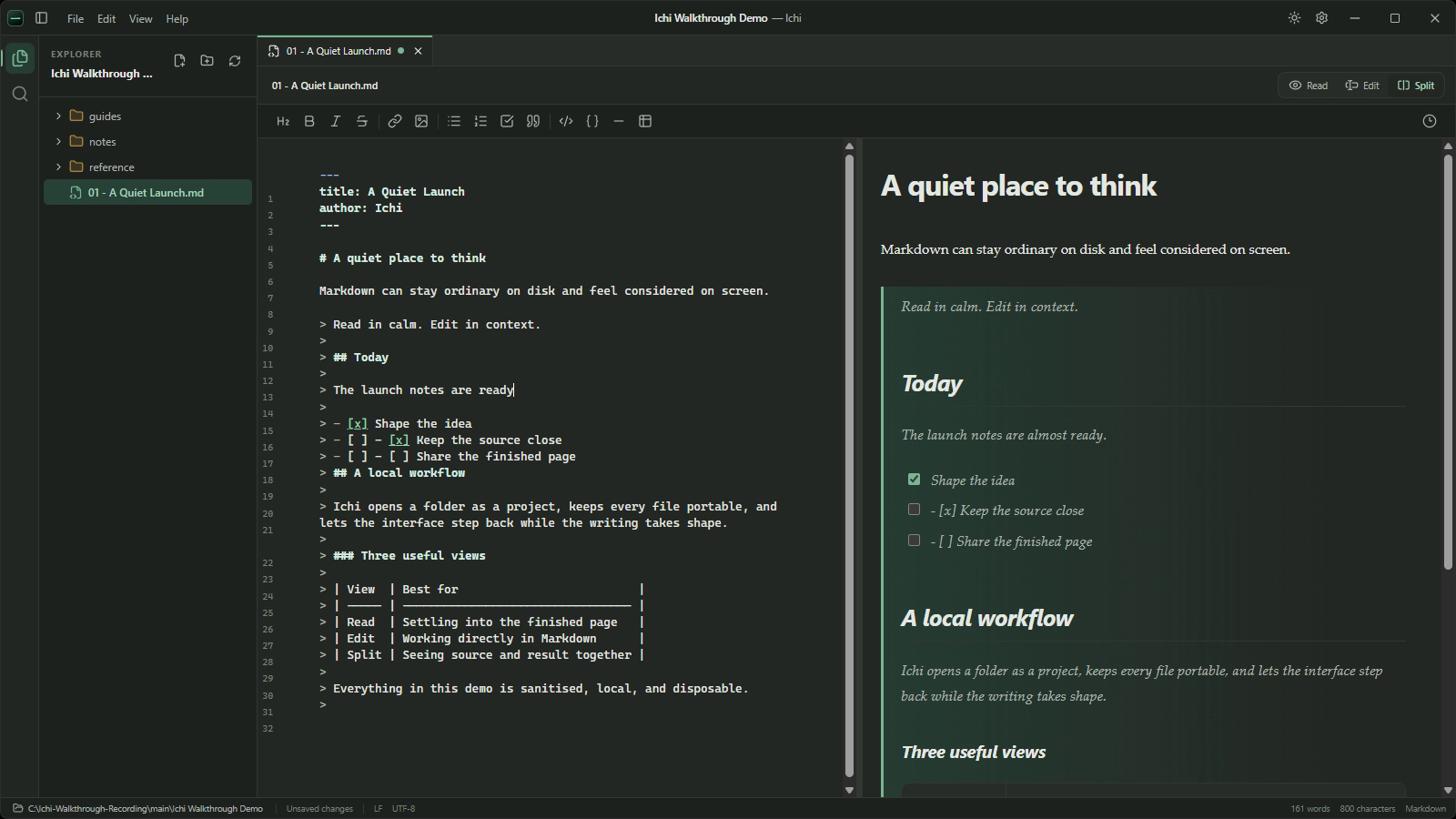
Split view is useful when you need to see two forms of the same document at once. In Ichi, the Markdown source sits on the left and the rendered preview sits on the right. An edit to the source can be judged in the context of the page it produces.
That makes Split a focused writing and checking tool. It is not a way to place two different files side by side, and it does not add comparison, merging or synchronisation between documents. Its purpose is simpler: show the relationship between what you write and what a reader sees.
Used at the right moment, that relationship can save a great deal of mental translation. Left open for every task, it can also give each half less room than it needs. The useful question is not whether Split is the best view, but when it earns its place.
Use Split when the rendering affects the decision
Markdown source is deliberately readable, but punctuation still stands between the writer and the finished page. A run of # characters sets heading depth. Blank lines affect the shape of a list. A small error in a link or table can be much clearer in the rendered result than in the source.
Split view keeps those two perspectives together. You can work directly in the source while checking the hierarchy, spacing and emphasis on the other side.
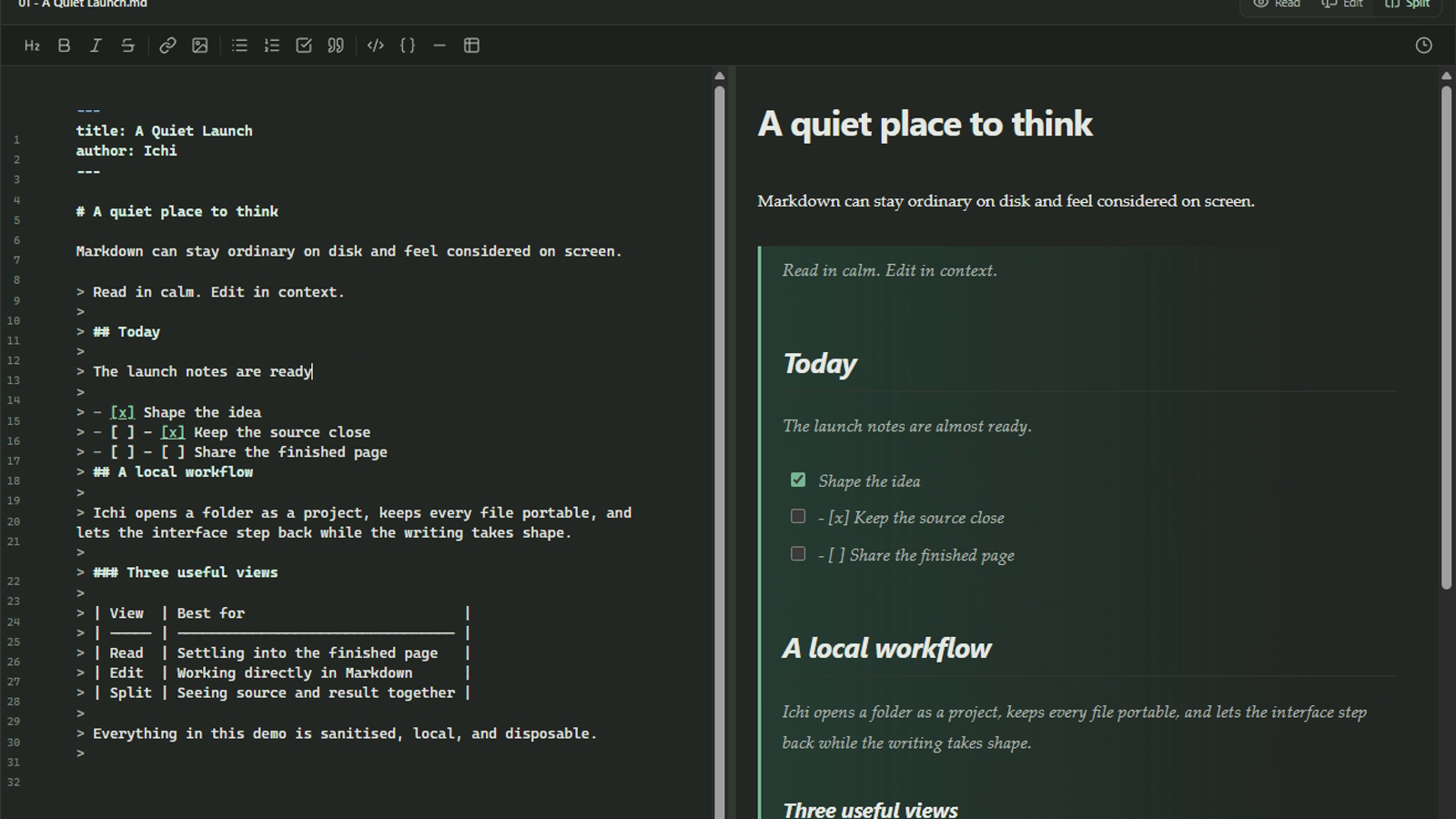
This is most useful during a formatting pass, when the words are largely settled but the document still needs structural attention. It also suits small, precise edits where switching repeatedly between Edit and Read would interrupt the thought.
Check structure while the source is still visible
A rendered page helps you notice whether the document has the shape you intended. In Split, you can inspect that shape without losing sight of the Markdown that creates it.
Consider using it when you are:
- correcting a heading hierarchy
- checking that lists and checkboxes render as expected
- reviewing block quotations or emphasis
- working on a table whose columns need care
- checking the visible text and destination of a link
- deciding where a long section should be divided
The preview is not a decorative extra in these moments. It provides evidence for the edit. If a heading feels too strong, the source needed to change is already beside it. If a list looks crowded, you can adjust it without moving to another screen.
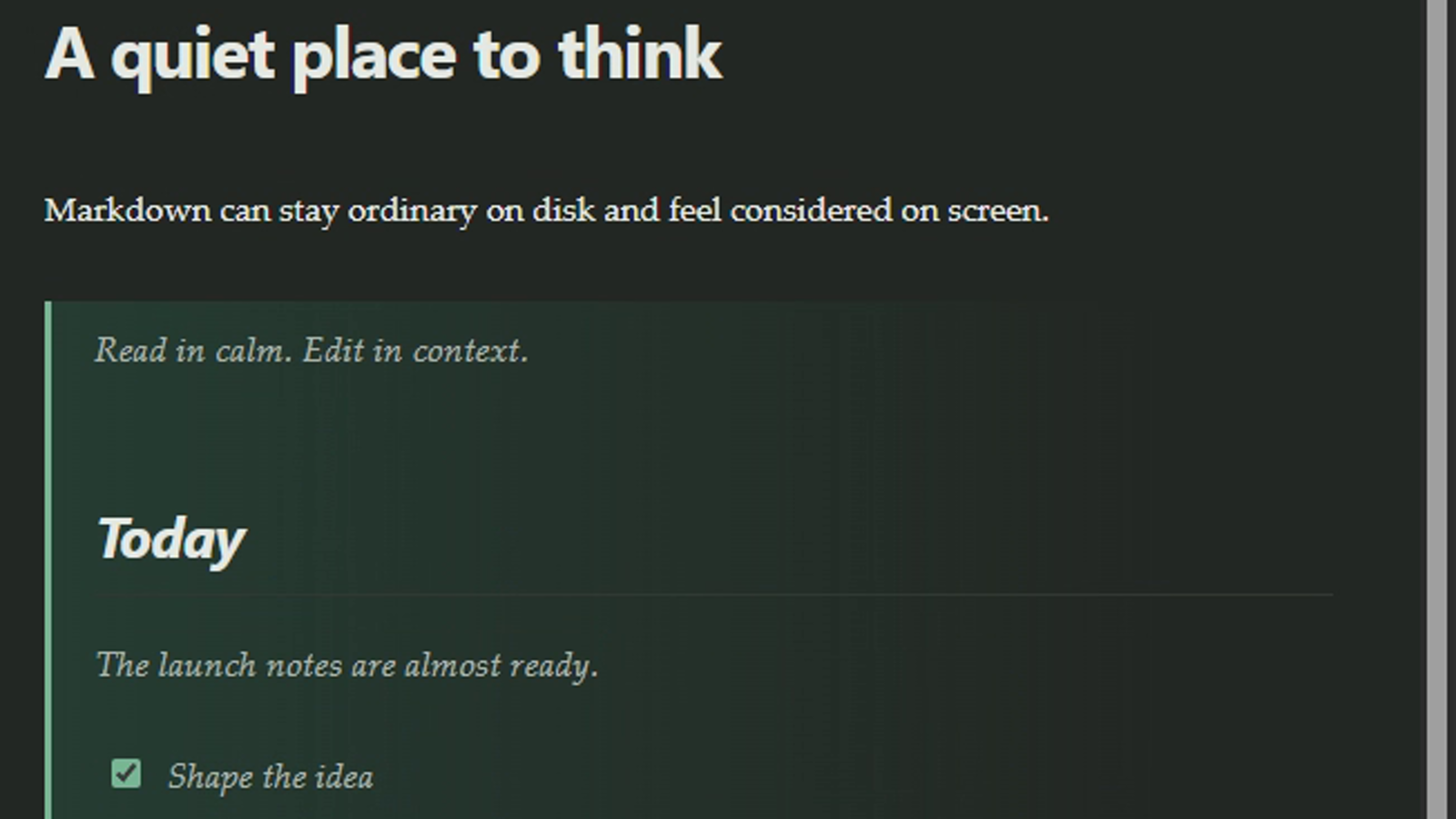
For an initial orientation to the three document modes, A calm start with Ichi covers Read, Edit and Split in the wider flow of opening a workspace.
Use it for edits with a visual consequence
Not every wording change needs a live preview. Replacing one clear sentence with another is usually easier in Edit, where the source has the full document area. Split becomes more valuable when a change can alter both meaning and presentation.
A common example is reorganising a section. Moving a paragraph beneath a new subheading looks straightforward in source, but the preview shows whether that extra level improves the page or merely fragments it. The same applies to turning prose into steps, adding a quotation, or changing the balance between short and long sections.
This is a restrained kind of feedback. Ichi is not scoring the writing or proposing a layout. It is showing the rendered Markdown faithfully enough for you to make your own decision.
Adjust the balance between source and preview
The divider between the two panes can be moved. Drag it towards the side that needs more room, while keeping the other view available for context. Double-clicking the divider returns it to an even balance.
The divider also works from the keyboard when it has focus. The arrow keys adjust the balance in small steps, while Home and End move to the available limits. Those limits keep both the editor and preview usable rather than allowing either one to disappear entirely.
This flexibility matters on a smaller display. Source-heavy work may need a wider editor. A visual review may benefit from a wider preview. The split does not have to imply equal attention.
Know what Split does not do
The two panes are not independent documents. Opening Split does not create a second file, compare related drafts or calculate differences between versions. It does not merge changes, link paragraphs or keep two separate documents aligned.
For finding another document, use the workspace navigation or search across the Markdown workspace. For reviewing an earlier saved state of the current document, Time Machine is the relevant tool. Keeping these jobs distinct makes the interface easier to understand and prevents Split from carrying expectations it was not designed to meet.
Return to one view when focus matters more
Once the formatting question is answered, a single-pane view is often calmer. Read gives the rendered document the full area and removes the source from sight, which helps when you want to read without leaving your flow. Edit gives the Markdown room when you are making a longer series of changes.
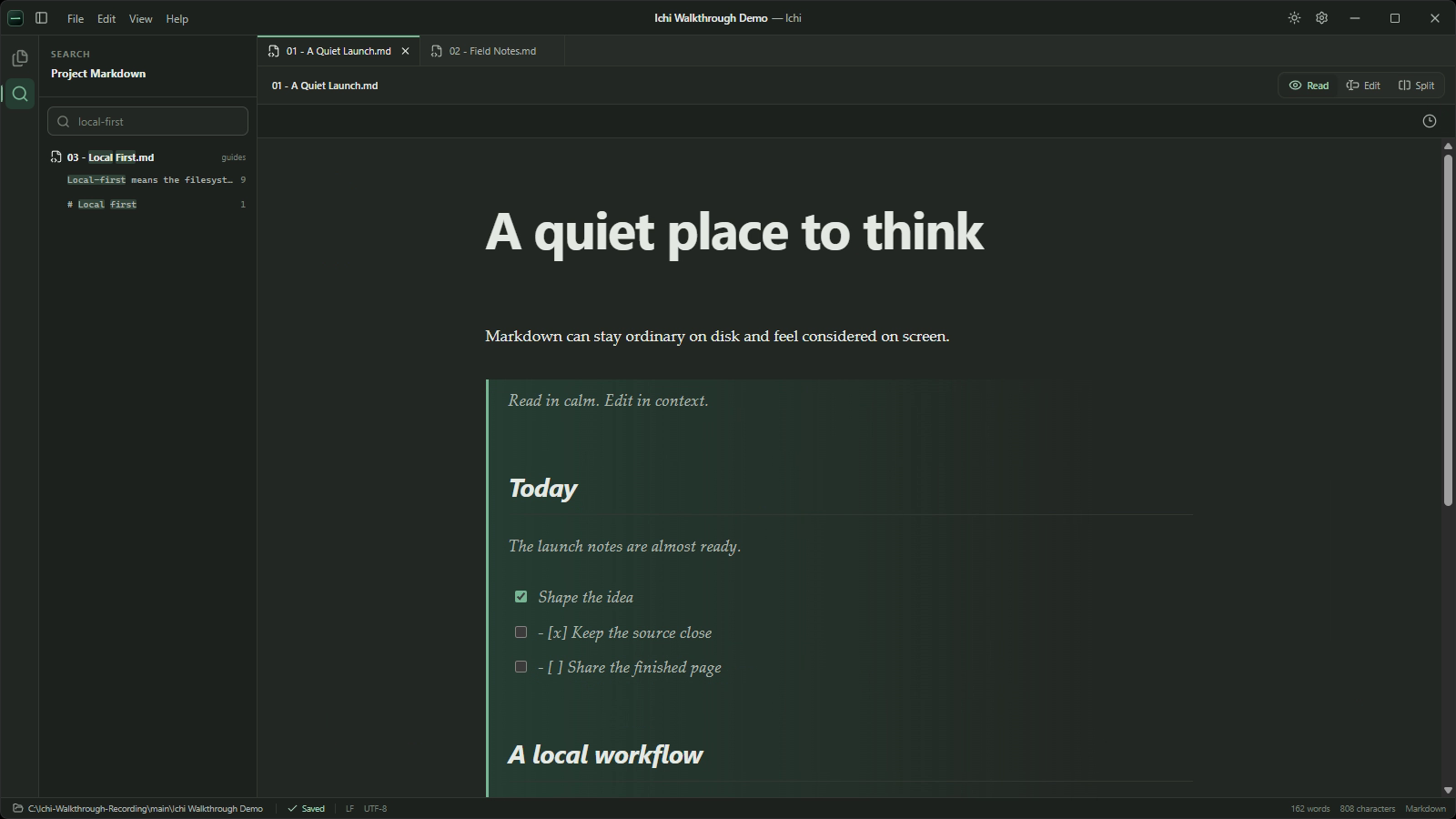
A practical rhythm is to write in Edit, open Split for a structural check, and finish with a pass in Read. There is no need to follow that order rigidly. The point is to let each view serve the part of the task it handles well.
You can choose Split from the document controls or use Ctrl+3. Ctrl+1 returns to Read and Ctrl+2 moves to Edit. The shortcuts are current in Ichi for Windows, while the visible controls remain the clearest way to discover the modes.
Context without permanent clutter
Split view is at its best as a temporary working surface. It brings source and result together for the decisions that depend on both, then gets out of the way when they do not.
That restraint is part of a calmer Markdown workflow. You do not need every tool visible all the time. You need the right amount of context for the decision in front of you.
To try the three document views with your own files, download Ichi for Windows. Your Markdown stays in its existing folder, ready to open in Ichi or any other tool you choose.
Related guides
How to review older versions of a Markdown document
Use Ichi Time Machine to inspect an earlier local version, return to the current document, or restore the older text when that is the careful choice.
By Robert Clarke
How to search a Markdown workspace without the noise
Find a remembered phrase, filename or passage across the Markdown files in an Ichi workspace, then return to reading in context.
By Robert Clarke
How to read Markdown without leaving your flow
A calmer way to read Markdown on Windows while keeping your files portable and your attention on the document.
By Robert Clarke