
Working with Ichi
How to review older versions of a Markdown document
Use Ichi Time Machine to inspect an earlier local version, return to the current document, or restore the older text when that is the careful choice.
Robert Clarke
Independent developer of Ichi
- Published
The latest version of a document is not always the whole story. A careful paragraph may have been simplified too far. A useful checklist may have disappeared during a rewrite. You may only want to understand what the note said before a meeting changed its direction.
Ichi Time Machine keeps local history for documents as you save them. It lets you inspect an earlier state without first replacing the file you have now. If the older text is the version you genuinely need, restoration is available as a separate, deliberate action.
This is useful history for everyday writing, not a substitute for Git, a backup service or a collaborative revision system. Keeping that boundary clear makes Time Machine easier to use with the right expectations.
Open history from the current document
With a document open, choose the clock control labelled Open Time Machine in the document toolbar. The Time Machine panel appears beside the document and lists the local versions available for that file.
The panel describes the behaviour plainly: Versions are saved quietly as you work. When Time Machine is enabled, successful saves can add snapshots to the local history. Ichi does not needlessly duplicate unchanged saves in the useful history.
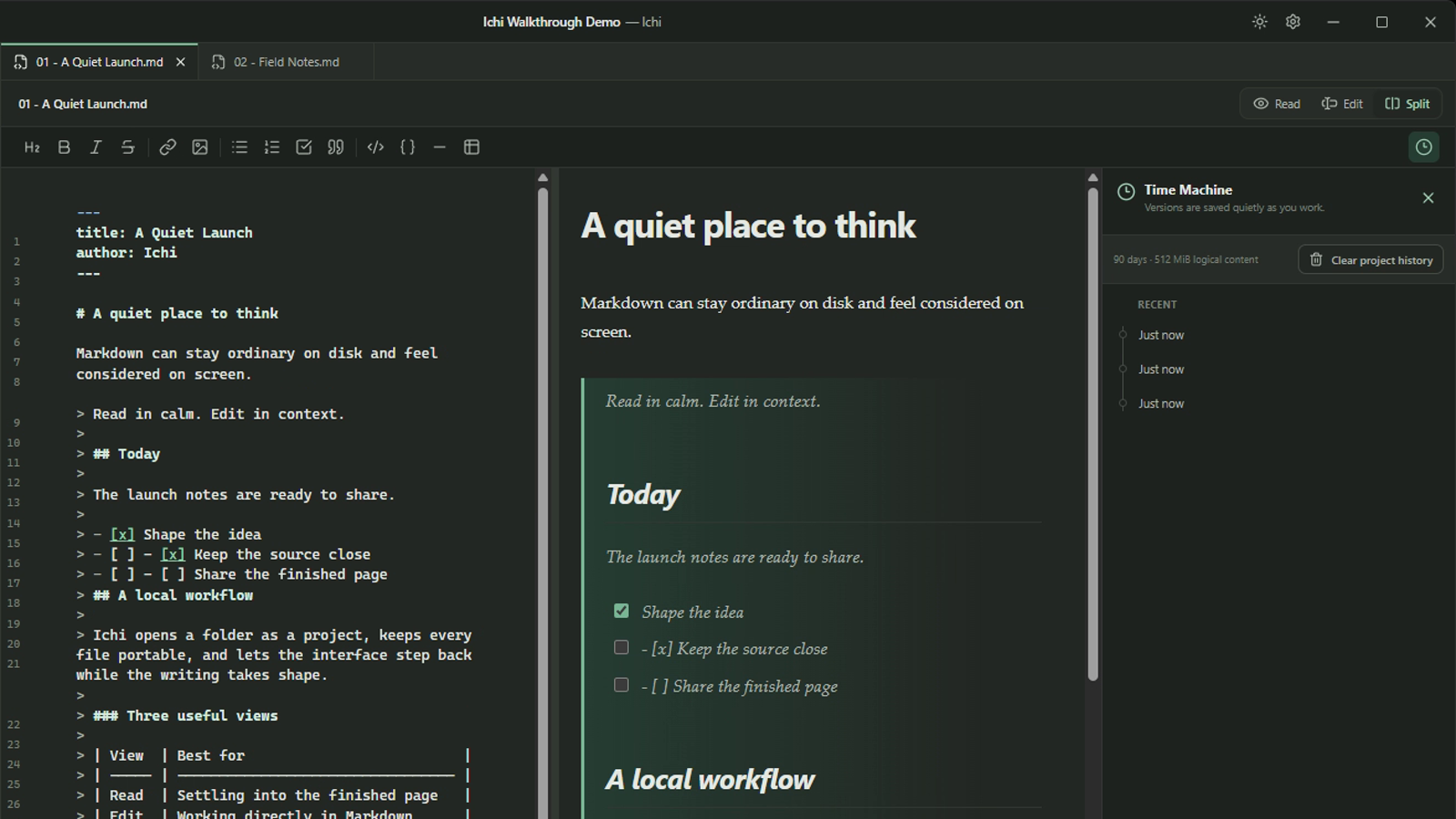
Recent saves are grouped so that a burst of work does not become an overwhelming wall of timestamps. The panel shows the available times, and older entries can be loaded when the history extends beyond the initial list.
This history belongs to the opened project and the local Ichi installation. It is designed to give you a practical route back through saved work on this PC.
Choose an earlier state without changing the file
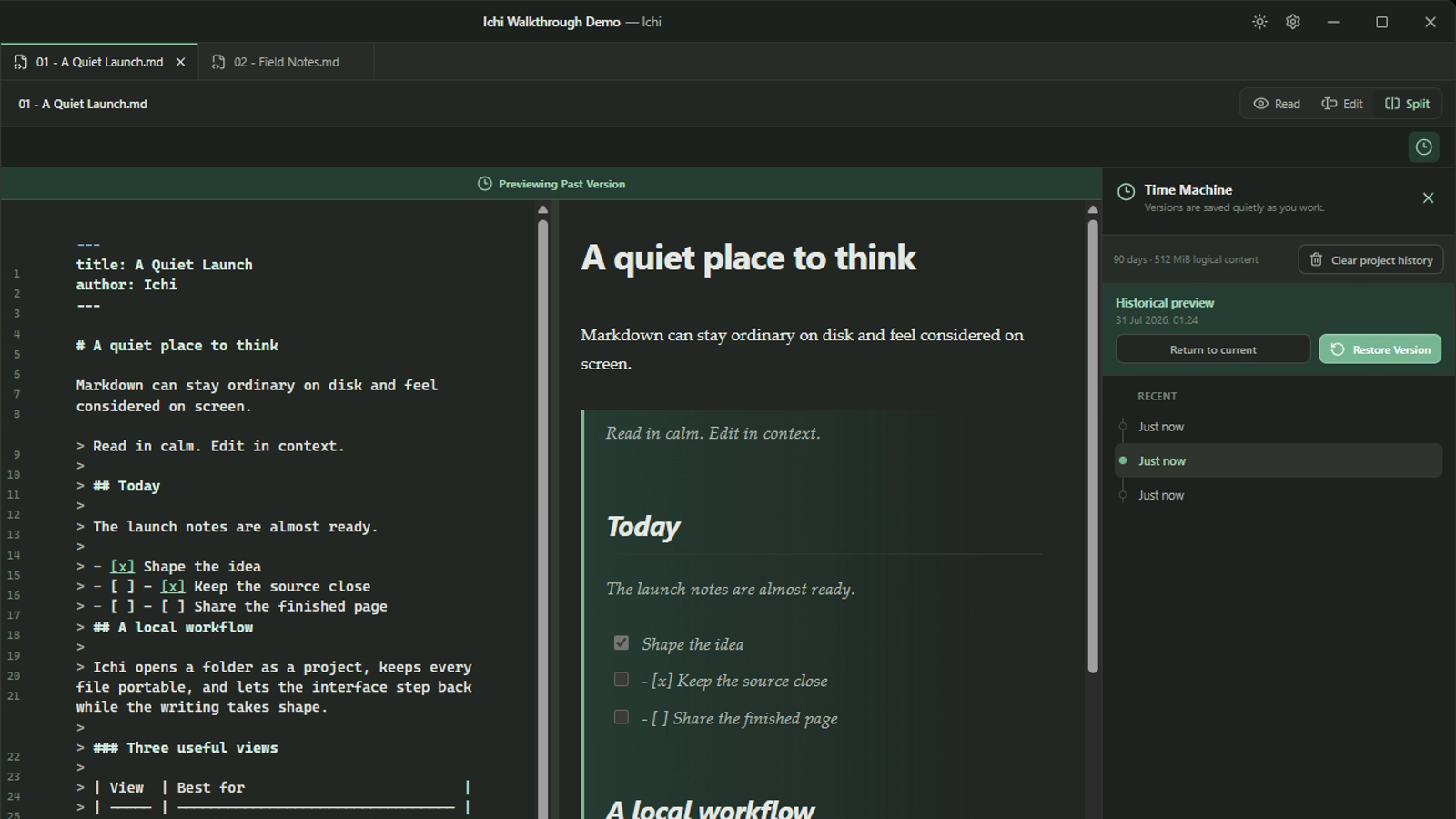
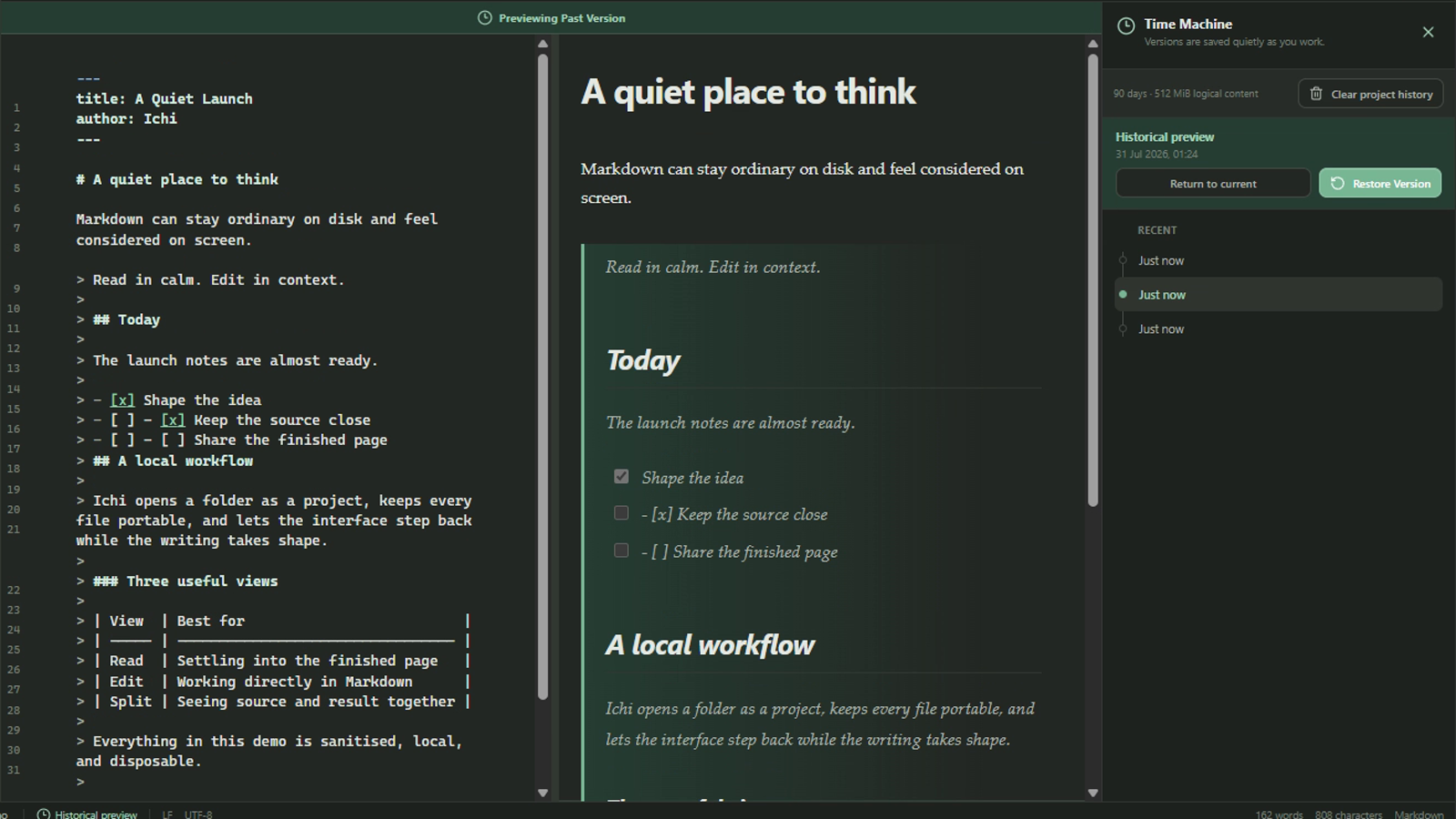
Select a timestamp to open that saved state. Ichi changes the document area to Previewing Past Version and the Time Machine panel identifies it as a Historical preview, with the date and time of the selected version.
The preview is read-only. Simply looking at an earlier version does not write it over the current file. That separation gives you room to read carefully before making a recovery decision.
You might use the preview to answer a focused question:
- Was this section present before the last rewrite?
- What wording did the original decision use?
- Did the task list once include another step?
- Which version has the clearer introduction?
- Was a link or reference removed accidentally?
Time Machine shows each saved state as a whole document rather than producing a line-by-line diff. You compare by reading the historical state in context, then returning to the current document or selecting another timestamp as needed.
Return to the present when you only needed context
If the earlier version answered the question, choose Return to current. Ichi leaves the historical preview and shows the working document again. Nothing in the Markdown file is changed by that review.
This is often the right outcome. History can be valuable without becoming a recovery operation. You may confirm that the current wording is better, copy the idea into your own mental model, or simply understand how the document arrived where it is.
For finding a phrase when you do not know which document contains it, use Search across the Markdown workspace first. Time Machine becomes relevant once you have the document and need its saved history.
Restore only when the earlier text should become current
When the selected historical state is the one you want to recover, choose Restore Version. Restoration is supported in the current app when Time Machine is enabled.
Ichi protects the transition by capturing the present content as a restore point before writing the selected historical text as a new save. The restored content becomes the current document, and Ichi confirms the action with Version restored.
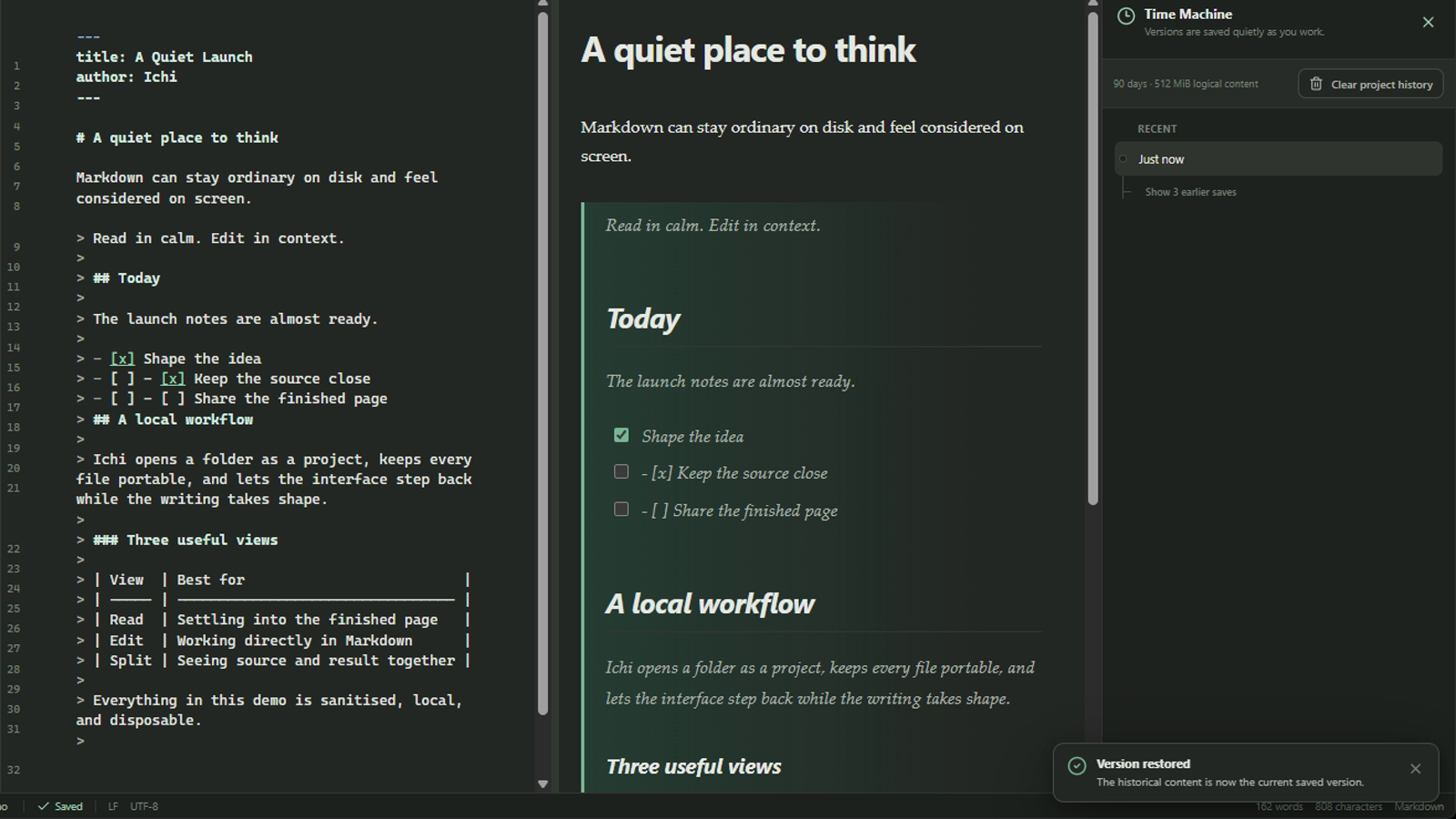
This design avoids treating restoration as a silent jump backwards. The state you had immediately before restoring remains represented in local history, so there is a route to review it again. Even so, restoration changes the file. Read the historical preview and confirm that you have selected the intended timestamp before using it.
If history has been paused in Ichi's settings, restoration is unavailable until Time Machine is enabled again.
Understand what the history is, and what it is not
Time Machine is deliberately narrower than version control. It does not create branches, commits or merge requests. It does not attribute edits to different people, compare lines as a formal diff, or synchronise history across devices.
It is also not an unlimited backup. The current default policy retains local history within a rolling boundary shown in the app as 90 days · 512 MiB logical content. Older history may be removed as those limits are reached, and local history cannot protect against every problem affecting the PC or its storage.
For important work, keep an appropriate backup. If a project needs reviewed changes, collaboration or a permanent technical record, use version control as well. Time Machine serves the quieter moment before those systems are necessary: recovering context or text from the recent writing history of one document.
Use history with proportion
The presence of versions can tempt you to inspect every change. Most documents do not need that level of attention. Time Machine is most helpful when you have a reason to look back:
- Open the history for the document in question.
- Select the likely timestamp.
- Read the historical preview without changing the file.
- Return to current if you only needed context.
- Restore only when the older text should become the new current state.
That sequence keeps review separate from action. It also preserves the calm quality of working with ordinary files: history is there when it helps, but it does not have to become the centre of the writing process.
You can learn more about Ichi's document views and local-first approach on the features page. To try Time Machine with Markdown files on your own Windows PC, download Ichi.
Related guides
When to use split view in Ichi
Use Ichi split view when the relationship between Markdown source and its rendered result matters, then return to a quieter view when it does not.
By Robert Clarke
How to search a Markdown workspace without the noise
Find a remembered phrase, filename or passage across the Markdown files in an Ichi workspace, then return to reading in context.
By Robert Clarke
How to read Markdown without leaving your flow
A calmer way to read Markdown on Windows while keeping your files portable and your attention on the document.
By Robert Clarke