
Working with Ichi
How to read Markdown without leaving your flow
A calmer way to read Markdown on Windows while keeping your files portable and your attention on the document.
Robert Clarke
Independent developer of Ichi
- Published
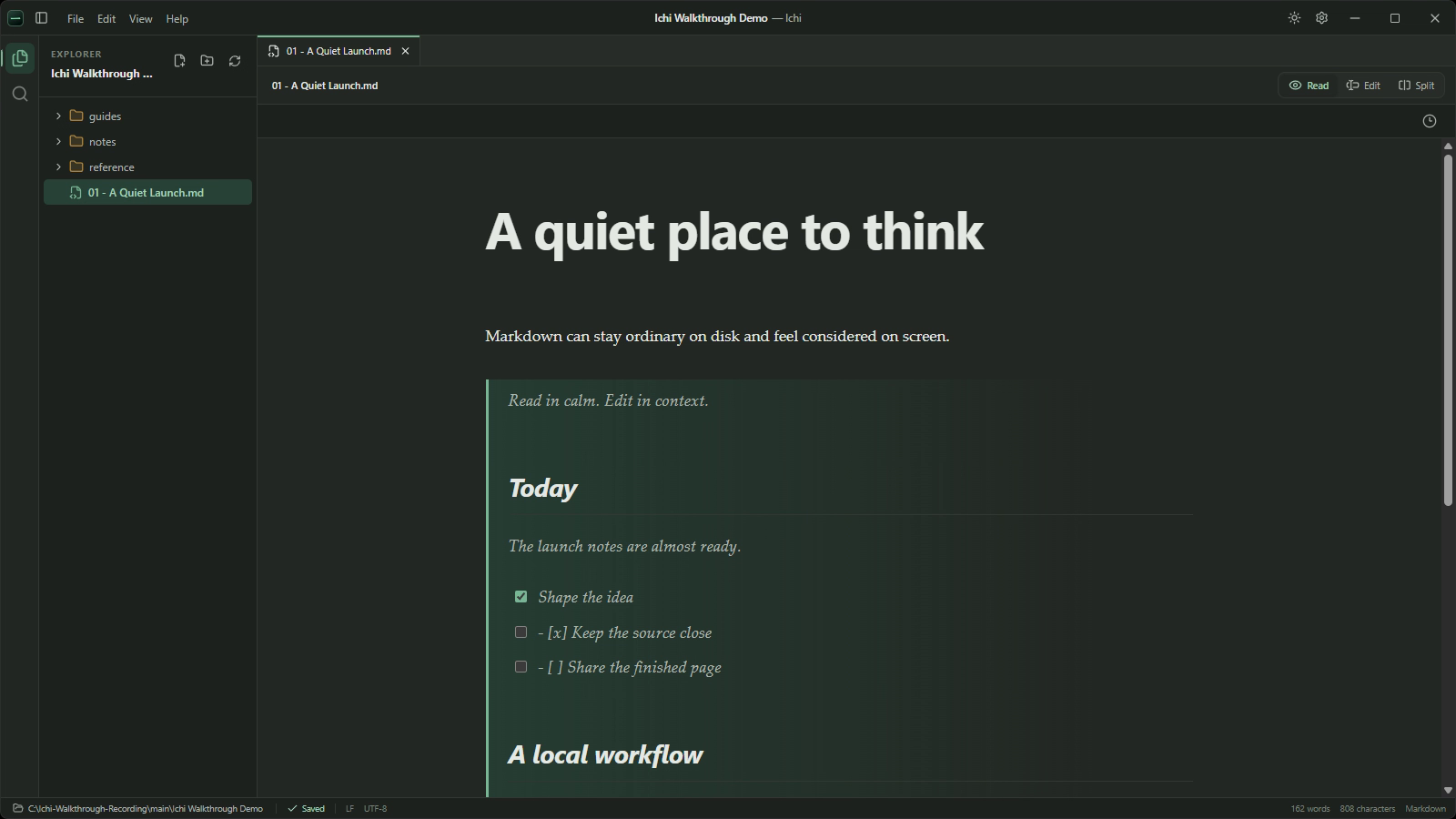
Markdown is easy to keep and easy to move. A note written today can still be opened years from now, in almost any text editor. That portability is one of the format's great strengths.
Reading it is a different matter. When a Markdown file opens in a development tool, the document often arrives with an entire working environment around it: file trees, source control, terminals, extensions and controls meant for writing code. Those tools are valuable when that is the job. They can feel needlessly busy when you only want to read a project note, review a draft or follow a set of instructions.
Ichi gives ordinary Markdown files a dedicated reading space on Windows. It does not import them into a proprietary library. You open a folder, choose a document and read the rendered page while the original file stays where it already lives.
When the job is simply to read
There are many moments when a Markdown document is useful but editing is not the immediate task:
- reviewing meeting notes before a call
- following a project plan while doing the work elsewhere
- reading a README or handover document
- checking a long draft for rhythm and structure
- referring to research notes while thinking through a decision
In each case, the source syntax is secondary. The meaning of the document comes first. Read view turns headings into hierarchy, lists into clear steps, links into usable links and quotations into something that looks intentional. The result is closer to the finished document you had in mind when writing it.
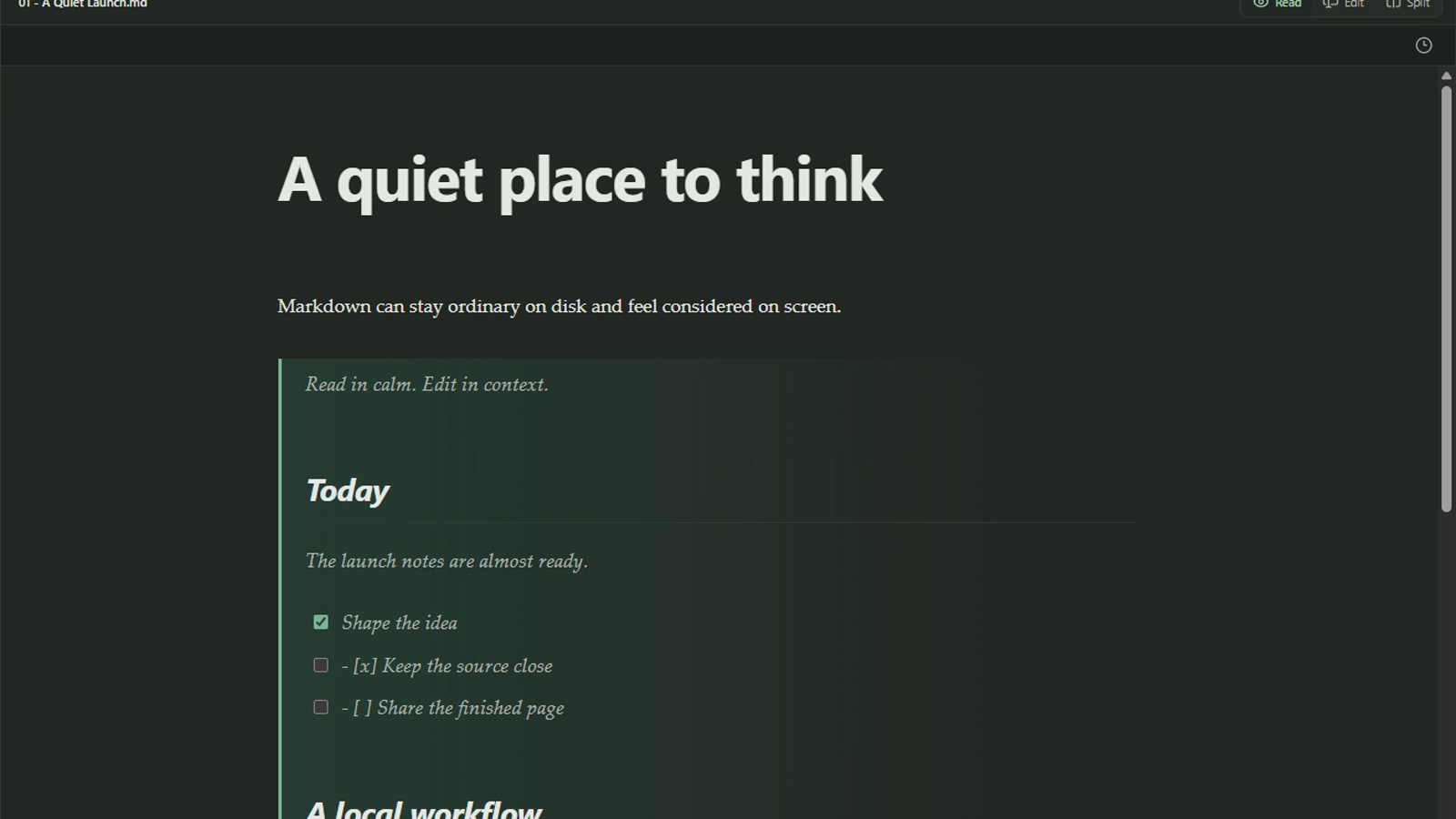
This is not an argument against code editors. It is a choice about fit. A code editor is excellent when you need its surrounding tools. A reading view is often better when your attention belongs to the words.
Keep the portable file, improve the reading experience
A calmer view should not require a new content system. Ichi works with the Markdown files in an opened workspace, so the folder on disk remains the organising structure. There is no separate import step and no Ichi-only document format to unwind later.
That separation matters. Your files remain useful outside Ichi, while Ichi can concentrate on how they feel to read. If a colleague sends a Markdown document, or another tool creates one, it can stay part of the same ordinary workspace.
If you are opening Ichi for the first time, A calm start with Ichi explains the basic folder-first approach. If the workspace itself needs tidying, Organise Markdown without moving files offers a useful next step.
Stay with the document as the context changes
Reading rarely happens in isolation. One note points to another. A plan leads to its supporting brief. A daily record sends you back to the longer project document.
Ichi keeps opened documents available as tabs, so you can move between related files without repeatedly returning to the file system. The sidebar still gives the wider workspace context, but it does not have to dominate the page. This is particularly helpful when you are checking a small group of documents as part of one piece of work.
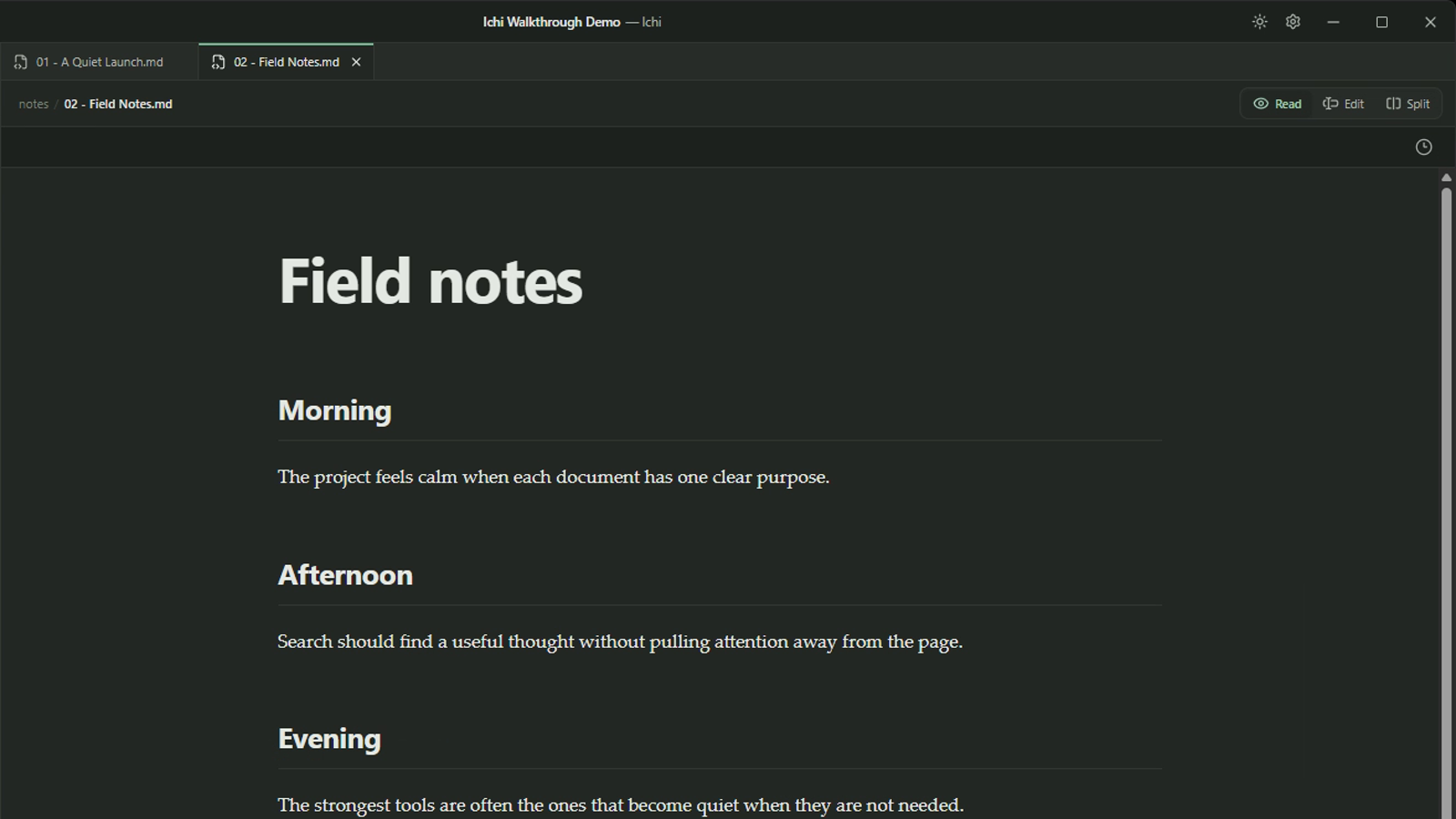
The aim is not to manufacture a frictionless productivity system. It is more modest: keep the documents close enough that a simple change of reference does not pull you out of the reading task.
Review the shape, not only the syntax
Rendered Markdown can reveal things that are easy to miss in source. A heading may feel too prominent. A list may run for too long. Several short sections may need to become one coherent passage. A quotation or checklist may carry more visual weight than expected.
Reading view makes those decisions easier because it shows hierarchy and spacing directly. For a substantial draft, it can also make the pace of the prose more apparent. You are reviewing what a reader encounters, rather than mentally translating punctuation as you go.
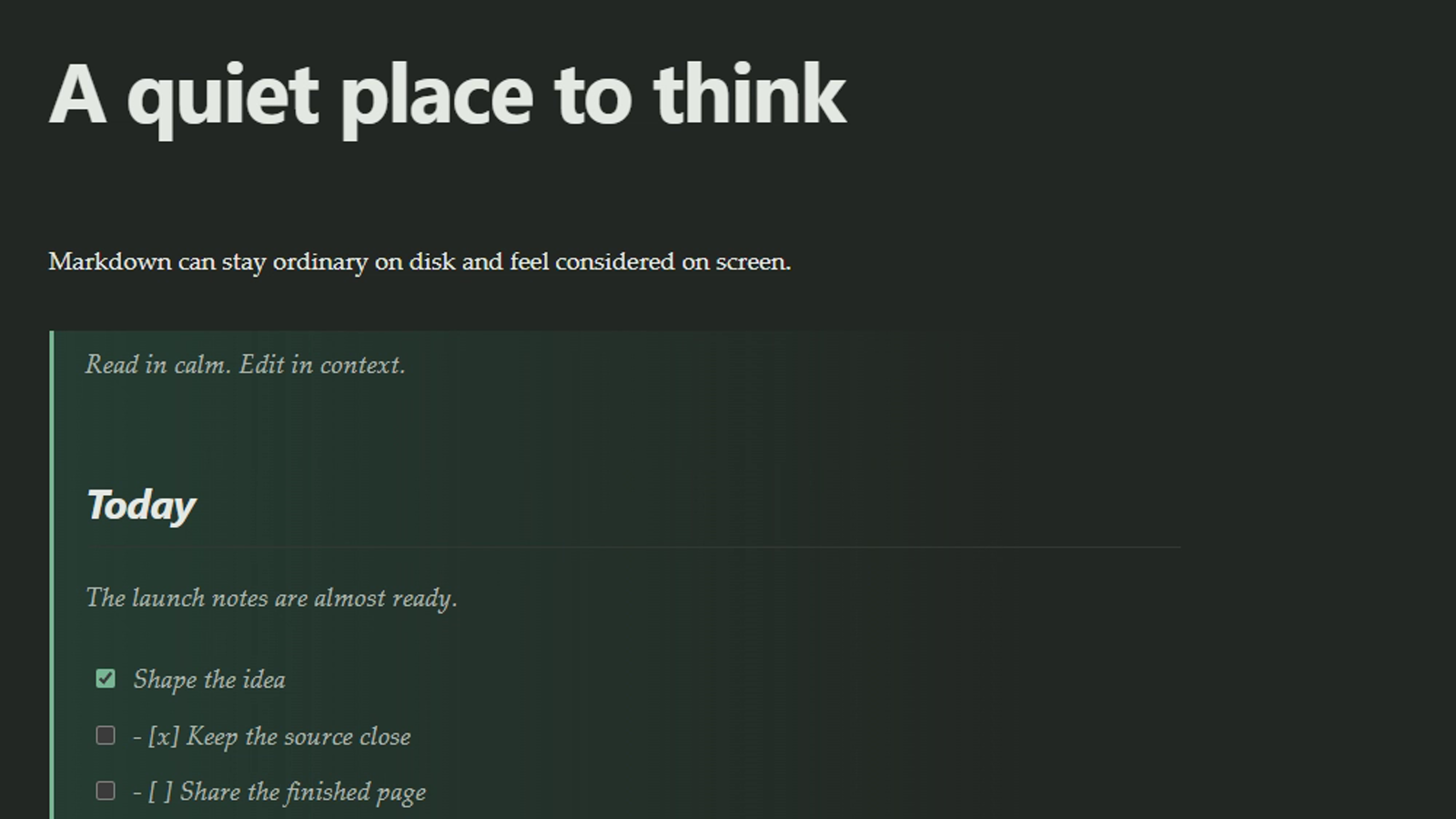
This makes Read useful during writing as well as after it. You can move into the rendered page for a quiet pass, notice what needs attention, then return to the source when you are ready to change it.
Change mode when the job changes
Ichi does not lock you into a single view. Read is for the document as a page. Edit is for working directly with the Markdown source. Split places that source beside its rendered preview when you need to see both at once.
The distinction is useful because different stages ask for different kinds of attention:
- Read to understand the document or review its overall shape.
- Edit when the wording or Markdown needs to change.
- Use Split when the relationship between source and rendering matters.
- Return to Read when you want to judge the result without the syntax beside it.
The current mode controls are visible in the document toolbar, so the change is deliberate and easy to reverse. You can also use Ctrl+1 for Read, Ctrl+2 for Edit and Ctrl+3 for Split. These shortcuts are useful once they become familiar, but the visible controls are enough to begin.
For a fuller look at the available views and workspace tools, see Ichi features.
A calmer default for Markdown on Windows
The best reading tool is often the one that removes itself from the task. It should preserve the qualities that made Markdown useful in the first place, while giving the document enough care on screen to be comfortable for sustained reading.
Ichi offers that quieter default without asking you to reorganise your files or give up other tools. Open the workspace you already have, read what matters, and return to editing only when the work calls for it.
If that sounds useful for your Markdown workspace, you can download Ichi for Windows and try it with a folder of your own.
Related guides
How to review older versions of a Markdown document
Use Ichi Time Machine to inspect an earlier local version, return to the current document, or restore the older text when that is the careful choice.
By Robert Clarke
When to use split view in Ichi
Use Ichi split view when the relationship between Markdown source and its rendered result matters, then return to a quieter view when it does not.
By Robert Clarke
How to search a Markdown workspace without the noise
Find a remembered phrase, filename or passage across the Markdown files in an Ichi workspace, then return to reading in context.
By Robert Clarke