
Working with Ichi
How to search a Markdown workspace without the noise
Find a remembered phrase, filename or passage across the Markdown files in an Ichi workspace, then return to reading in context.
Robert Clarke
Independent developer of Ichi
- Published
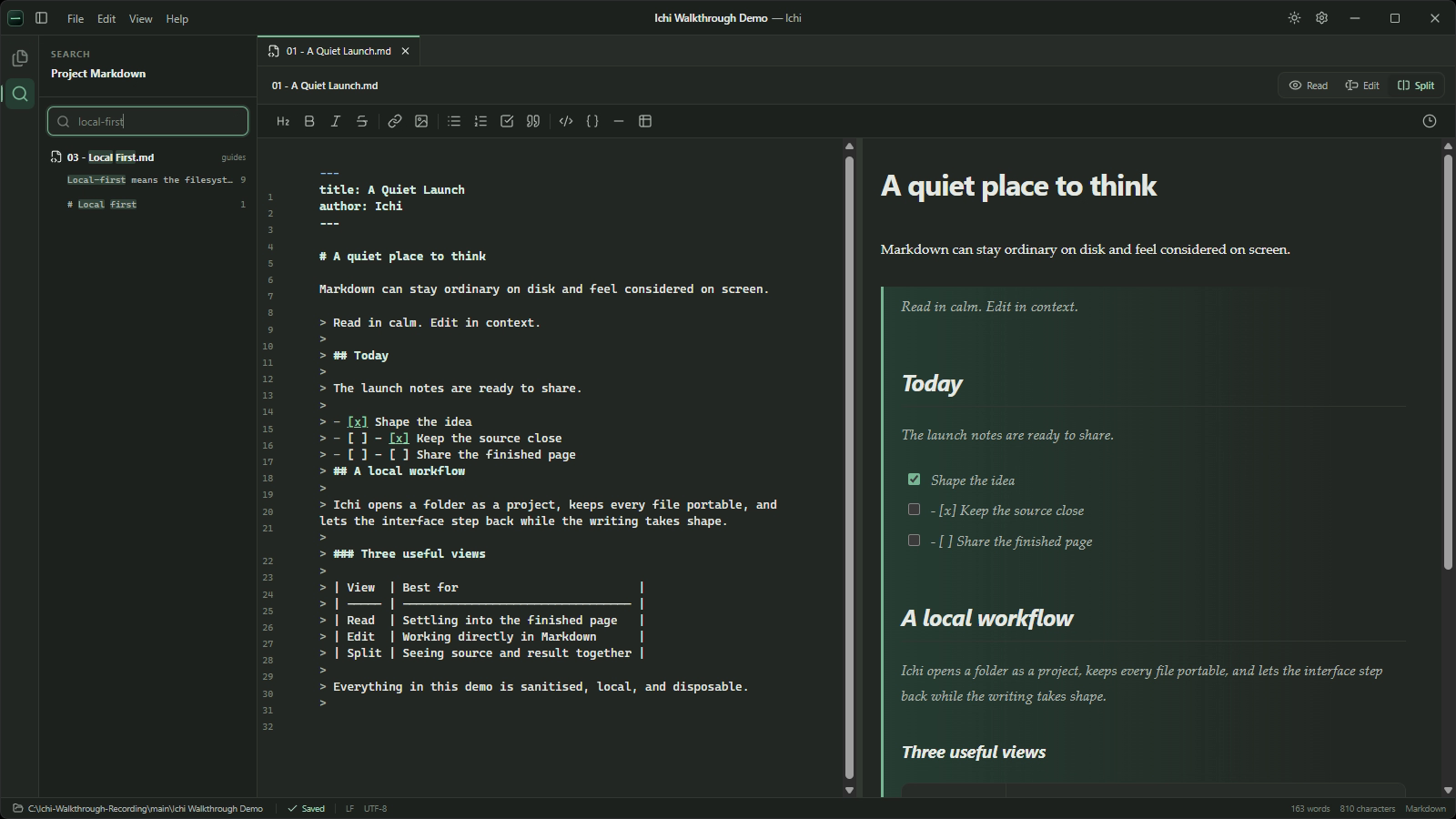
You often remember a document by a fragment. A phrase from a meeting note. The name of a feature in a planning file. A sentence that was useful last month, although the filename has disappeared from memory.
This is a retrieval problem, not necessarily an organisation problem. Renaming folders or adopting a larger knowledge system may be worthwhile for other reasons, but neither should be required every time you need to find a few words in a collection of Markdown files.
Ichi Search works across the Markdown files in the workspace you have opened. It looks through filenames, paths and file contents, then presents the matches in a compact project panel. The goal is to help you recover the document and return to the work, without turning search into a separate destination.
Start with the detail you actually remember
Open Search from the sidebar or press Ctrl+Shift+F. The panel is labelled Search, with Project Markdown beneath it and a field labelled Search in files.
Enter the clearest fragment you have. It might be:
- a distinctive phrase from the body of a note
- part of a filename
- a project name that appears in several paths
- a heading you remember seeing
- a term used in a checklist or decision record
Specific phrases usually produce the quietest result set. If you remember local-first, search for that rather than a broad word such as local. You can always shorten the query if the first attempt is too narrow.
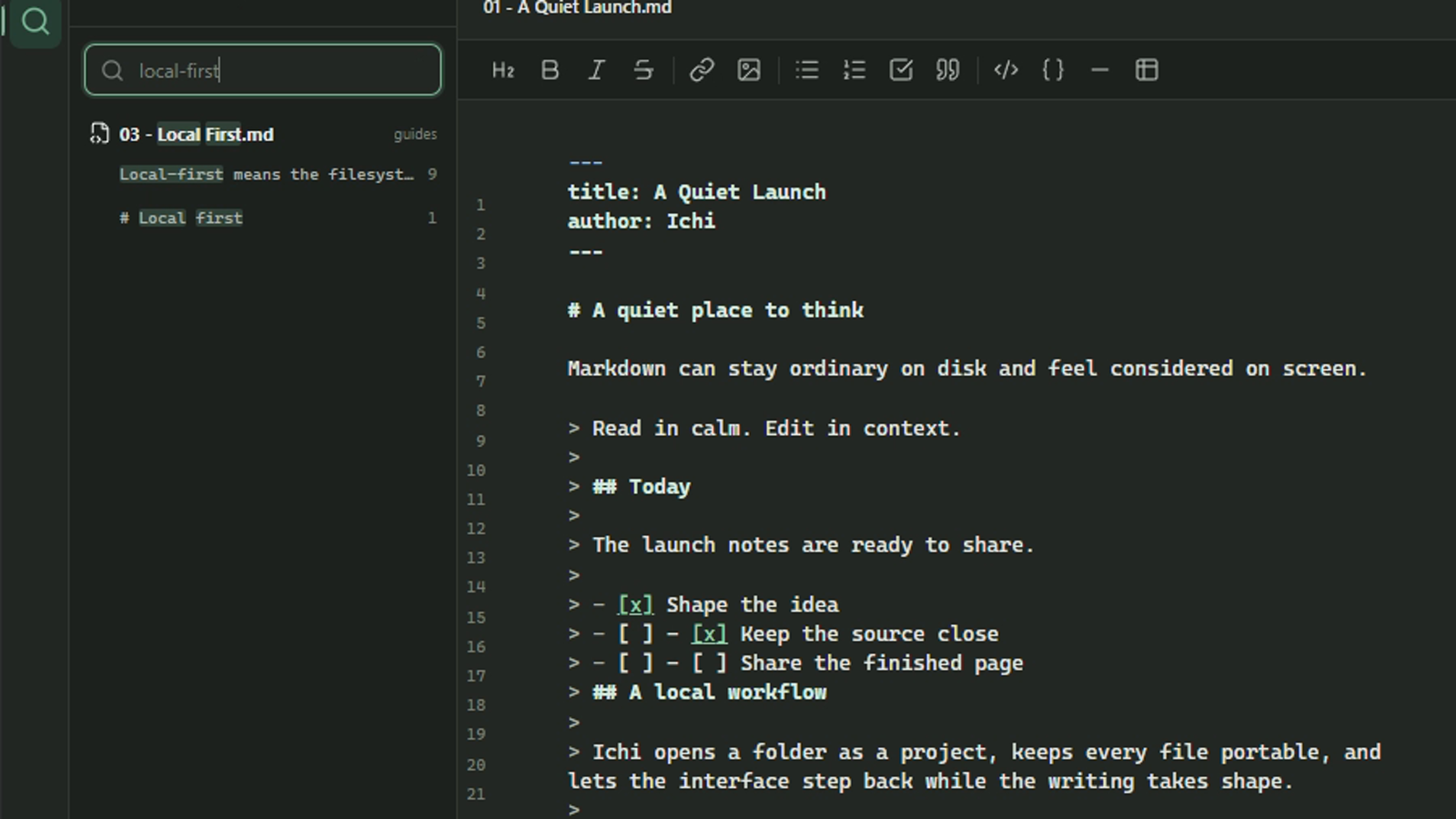
Search is not semantic or AI-generated. It does not infer a topic from a vague question, inspect images or reach into cloud services. It searches the text and names of the Markdown files in the current workspace. That narrower promise makes the results easier to understand.
Read the result before opening it
Matches are grouped by file. Each group shows the filename and its path, which helps distinguish documents with similar names in different folders. Content matches include a short excerpt and line number, with the matched characters highlighted.
Those small pieces of context can answer two questions before you open anything:
- Is this likely to be the right document?
- Is this the right occurrence inside it?
A search for a product term might find the roadmap, meeting notes and a release checklist. Their paths explain the role of each file, while the excerpts show whether the term appears as a passing mention or part of the passage you need.
If the list is too long to be useful, add another meaningful word rather than trying to inspect every match.
Select a result and recover its context
Choose a content match and Ichi opens the document at the relevant location. In Edit, the editor reveals and selects the match. In Read or Split, the rendered occurrence is brought into view and highlighted where it can be mapped to the page.
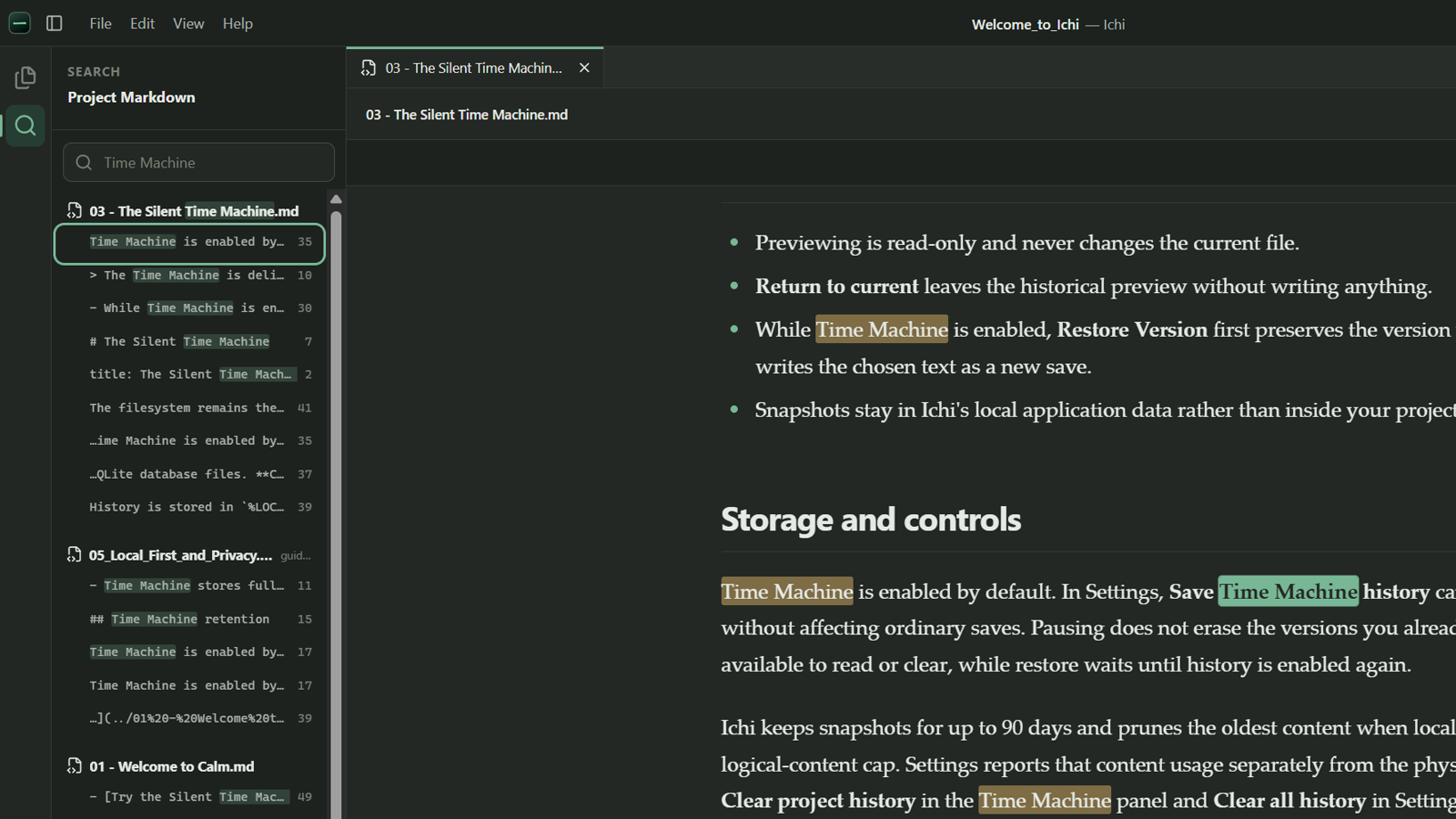
This is the important handoff. Search tells you where the words live, but the surrounding document tells you what they mean. A sentence from an old decision record may need the date and heading above it. A checklist item may only make sense beside the paragraph that explains why it exists.
The opened document remains an ordinary tab in Ichi. You can read it without leaving your flow, move to a related file, or edit the source if the task has changed. Search has done its job once you are back in context.
Search the workspace you chose
Ichi searches the opened workspace rather than every file on the computer. This boundary keeps results relevant to the project or collection you are currently using.
Ichi respects the workspace's intended boundaries. Deliberately ignored or generated locations are not treated as normal project content, and symbolic links are not followed. This reduces incidental matches without widening the search beyond the folder you chose.
The practical consequence is straightforward: if a Markdown file appears as part of the Ichi workspace, its name and readable text can be searched. If a location is deliberately ignored or outside that workspace, Search is not a way around that boundary.
For help shaping the folder itself without moving every file, see Organise Markdown without moving files.
Know when browsing is the better tool
Search is strongest when you can name something you remember. Browsing is better when the structure carries the information.
Use the workspace tree when you know the project and folder but not the wording. Use tabs when you are moving repeatedly among a small set of open documents. Use Search when a phrase, heading or filename fragment is the most reliable clue.
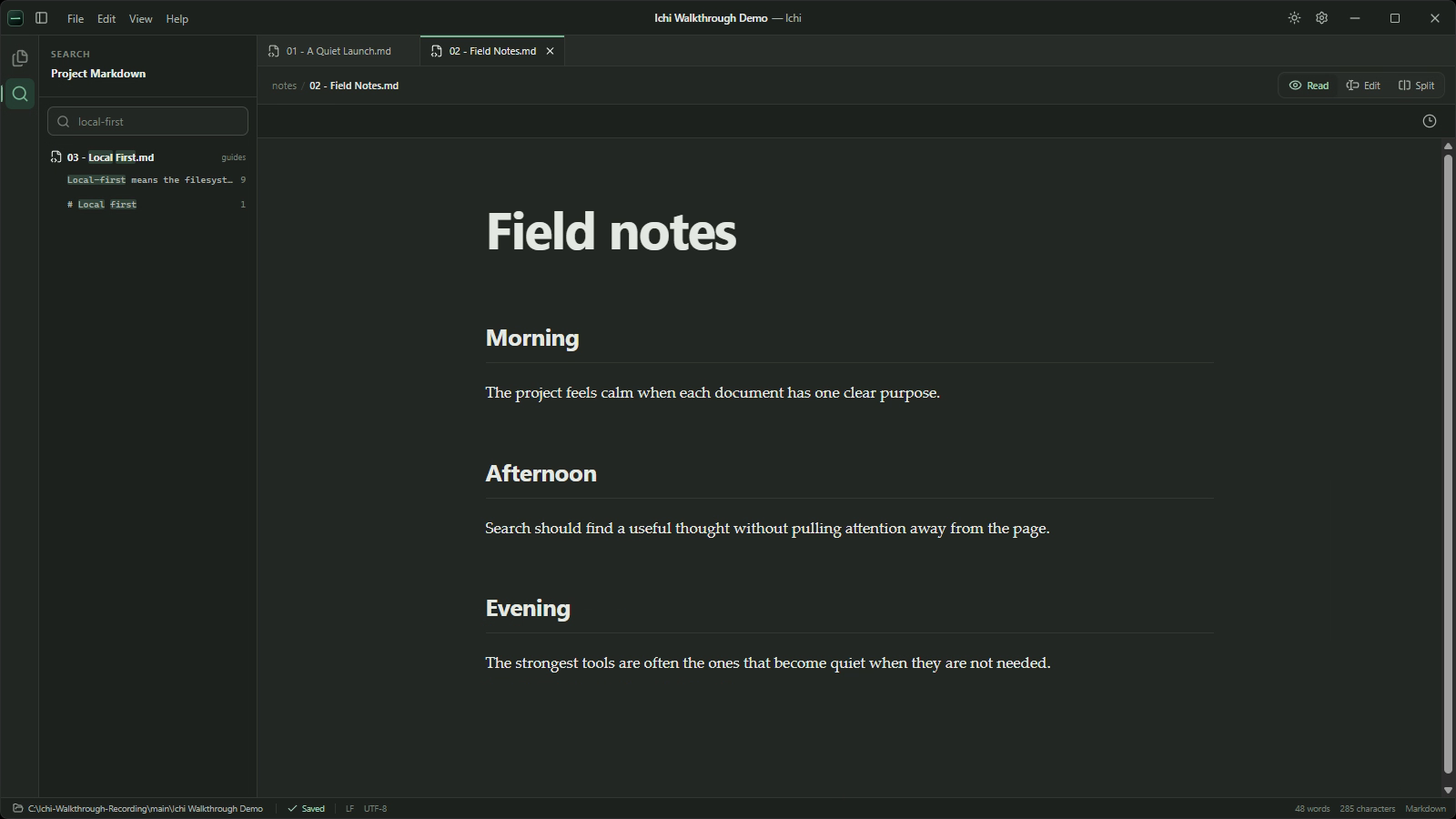
These methods complement one another. A search result can return you to the right folder. A document found by browsing can give you the vocabulary for a more precise search. There is no need to force every retrieval task through the same route.
If you are new to the app, A calm start with Ichi explains how opening a folder establishes the workspace boundary.
Keep the files portable
Search does not require an Ichi-only index that becomes the new home of your knowledge. The useful source remains the Markdown on disk. You can reorganise it with the file system, edit it elsewhere and keep it under version control if that suits the project.
That local-first arrangement is intentionally modest. Ichi helps you read and retrieve the files, but it does not claim ownership of them. There are no generated answers to verify and no remote copy required for search to make sense of the workspace.
Find it, read it, carry on
A good search experience should shorten the distance between remembering something and using it. Begin with the phrase you have, use the path and excerpt to choose well, then judge the result in its document.
If you want a quieter way to search the Markdown folders already on your Windows PC, you can download Ichi and open one as a workspace.
Related guides
How to review older versions of a Markdown document
Use Ichi Time Machine to inspect an earlier local version, return to the current document, or restore the older text when that is the careful choice.
By Robert Clarke
When to use split view in Ichi
Use Ichi split view when the relationship between Markdown source and its rendered result matters, then return to a quieter view when it does not.
By Robert Clarke
How to read Markdown without leaving your flow
A calmer way to read Markdown on Windows while keeping your files portable and your attention on the document.
By Robert Clarke